First Launch Experience
TLDR - Quick Summary
What: One-time initial configuration when first launching SFTP Gateway on GCP
Access: Navigate to VM External IP in browser, bypass self-signed SSL warning
Setup: Create admin username/password (requires uppercase, lowercase, number, special char)
No SSH Required: All configuration done through web interface
Overview
The first time you launch SFTP Gateway, you will go through a one-time configuration. This is where you create an admin user and configure a default Cloud Connection.
These steps are performed in the web interface, so there is no need to SSH into the server.
Open the web interface
Open a web browser and navigate to the External IP address of the VM.

You will see a warning message:
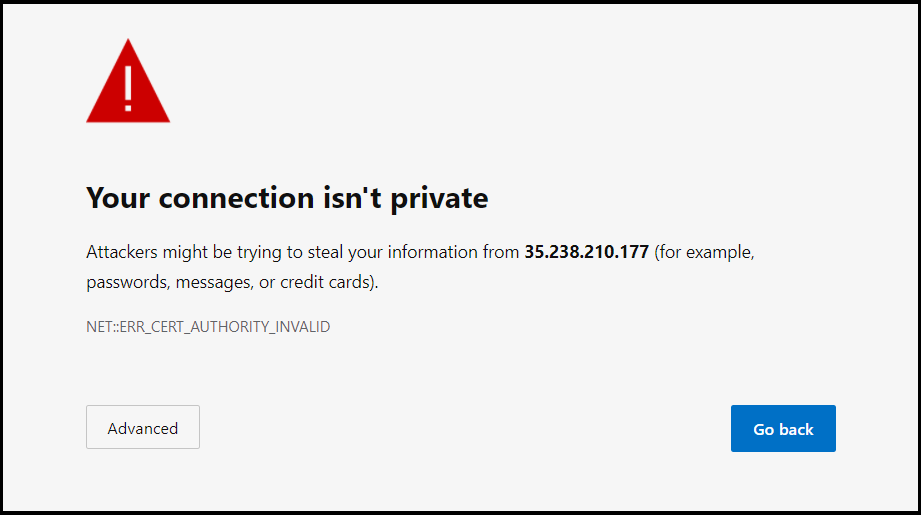
The web interface uses SSL to protect network traffic. But the SSL certificate is self-signed, so you will need to bypass this warning message.
Click Advanced to reveal the rest of the page.
Click Proceed to IP-address (unsafe).
Create an admin account
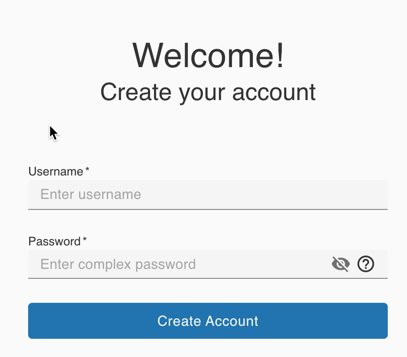
After you bypass the SSL warning, you will see a welcome page.
In this section, you will create an admin account. Fill out the following fields:
- Username: Enter a username such as
admin. - Password: Enter a password that has atleast one capital letter, one lowercase letter, one number and one special character.
Log in
To sign in to the SFTP Gateway admin UI, provide the username and password.