Setting up Instance Identity for SFTP Gateway
TLDR - Quick Summary
What: Use VM's Service Account instead of JSON key file for Cloud Connections
Prerequisite: VM must have Storage API access scope enabled (check below)
Harden: Create a custom IAM role with granular permissions and assign it at the bucket level
Use: Select "Use Instance's Service Account" in Cloud Connection credentials
Verify: Test Connection should show 3 green checkmarks
Overview
This article goes over how to set up SFTP Gateway with a Instance's Service Account, otherwise known as an Instance Identity.
Cloud Connections can then use this Identity, instead of using a JSON Key File.
Using the instance service account is the recommended approach because GCP manages credential rotation automatically — there are no static JSON key files to store, protect, or rotate.
Prerequisite: Verify API Access Scopes
GCP VMs have access scopes that control which Google APIs the VM is allowed to call. These are a legacy access control mechanism — they act as a ceiling, not as actual permissions. Your VM needs a scope that allows Storage API calls. Without it, SFTP Gateway cannot reach GCS regardless of IAM permissions.
To check your VM's access scopes, go to Compute Engine > VM instances > click on your VM > look under API and identity management > Access scopes.
You need one of the following:
- "Allow full access to all Cloud APIs" — This sets the
cloud-platformscope, which allows all API calls. This is the modern default and is recommended by Google. If your VM has this, you can skip ahead to Harden Permissions. - "Set access for each API" with Storage set to Full — This sets the
devstorage.full_controlscope, which allows only Storage API calls.
If your VM does not have either of these, you will need to change the access scopes:
- Stop your VM (you cannot change access scopes while the instance is running).
- Under the
Detailstab, click Edit. - Scroll down to the Identity and API access section.
- Either select
Allow full access to all Cloud APIs, or selectSet access for each APIand set the Storage API toFull.
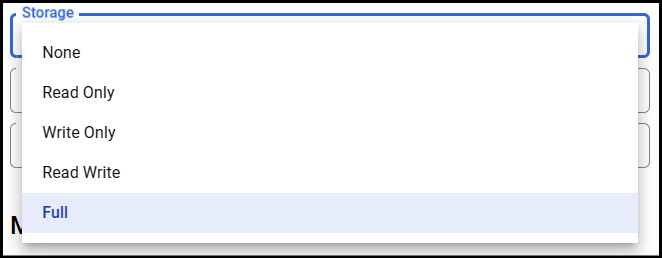
- Click Save and Start the instance.
Access Scopes vs IAM Permissions
Access scopes are just a gate — they allow or block API calls from reaching Google's servers. They do not grant permissions to any resources. The actual permissions are controlled by IAM roles assigned to the service account, which we configure in the next section. Think of it this way: the scope says "this VM is allowed to talk to the Storage API," and the IAM role says "this service account can read/write objects in this specific bucket."
Harden Permissions with a Custom IAM Role
By default, the instance's service account may have broad permissions at the project level. For production deployments, you should lock this down by creating a custom IAM role and assigning it only on the specific buckets that SFTP Gateway needs to access.
Step 1: Create a Custom IAM Role
- Navigate to IAM & Admin > Roles in the Google Cloud Console.
- Click Create Role.
- Enter a name (e.g.,
SFTPGatewayStorageRole) and description. - Click Add Permissions and add the following:
Bucket-Level Permissions
storage.buckets.getstorage.buckets.list
Object-Level Permissions
storage.objects.createstorage.objects.deletestorage.objects.getstorage.objects.liststorage.objects.update
Multipart Upload Permissions (required for large file uploads)
storage.multipartUploads.abortstorage.multipartUploads.createstorage.multipartUploads.liststorage.multipartUploads.listParts
- Click Create to save the role.
Step 2: Assign the Role at the Bucket Level
Instead of assigning the role at the project level, assign it on each specific bucket:
- Navigate to Cloud Storage > Buckets.
- Click on the bucket that SFTP Gateway should access.
- Go to the Permissions tab.
- Click Grant Access.
- Under New principals, enter the service account email of your VM's instance service account (e.g.,
123456789-compute@developer.gserviceaccount.com). - Under Role, select your custom role (e.g.,
SFTPGatewayStorageRole). - Click Save.
- Repeat for each bucket that SFTP Gateway needs to access.
Finding Your Instance Service Account Email
To find your VM's service account email, go to Compute Engine > VM instances > click on your VM > look under API and identity management > Service account.
Step 3: Remove Broad Project-Level Roles
If the instance service account has project-level Storage roles (like Storage Admin or Storage Object Admin), remove them:
- Navigate to IAM & Admin > IAM.
- Find the instance service account.
- Remove any broad Storage roles.
This ensures the service account can only access the specific buckets you granted in Step 2.
Configure your Cloud Connection
Now that your VM has the necessary permissions to Google Cloud Storage, you will be able to select Use Instance's Service Account for your Cloud Connection Credentials.
To verify you have the correct permissions, you can use the Test Connection button.
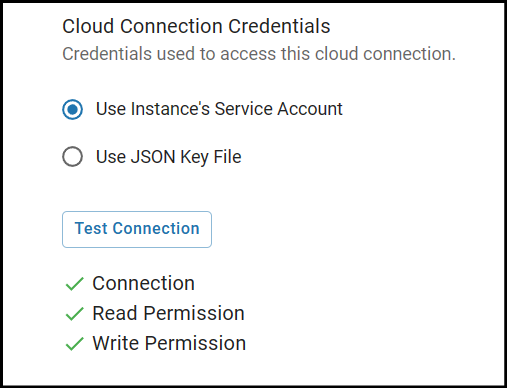
If you don't return 3 green checkmarks when using Test Connection, check that:
- The VM has an access scope that allows Storage API calls (
cloud-platformordevstorage.full_control) - The instance service account has the custom IAM role assigned on the target bucket
- The bucket URI in the Cloud Connection matches the bucket you granted access to
When to Use JSON Keys Instead
The instance service account is shared across all Cloud Connections on the VM. If you need per-bucket credential isolation — for example, if different cloud connections serve different customers and you want to ensure one connection cannot access another's bucket — use separate JSON key files with dedicated service accounts for each Cloud Connection. See Setting up a Service Account Key for details.